
How to Screen Share on Zoom

If you run online events, webinars, training sessions, or meetings on Zoom, it is vital to know how to screen share confidently.
Zoom offers advanced screen-sharing capabilities, allowing you to seamlessly share your screen, browser, files, documents, presentations, and even music.
Each week, we are approached by people wanting to learn how to use Zoom. If you think this is something you’d benefit from, please do get in touch.
Right, let’s get started….In this blog post, we are going to cover the essentials of screen sharing on Zoom, explore the advanced features, and share top tips to help you screen share with ease.
Zoom gives you multiple screen-sharing options, including sharing:
- Your entire desktop or phone screen
- Content from a second camera
- A whiteboard
- A video
- An audio or music file
- An iPhone or iPad screen
With a whole host of options available, you can adapt your screen sharing to suit any meeting or presentation.
If you’re new to Zoom or haven’t used the screen-sharing feature before, getting started is simple.
Once you’re in your Zoom meeting or webinar, locate the green “Share Screen” button on the toolbar at the bottom of your Zoom window.
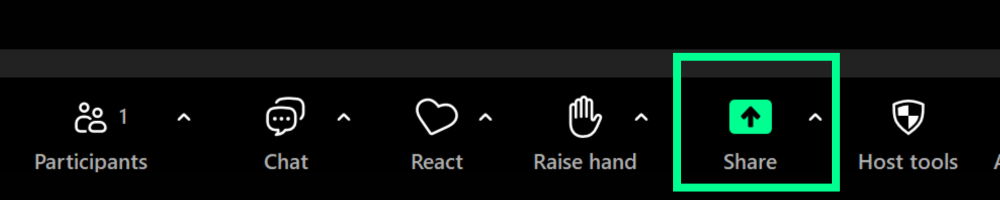
From here, you have three main options:

1. Screens
From this section, you can share your entire desktop, a specific window, or an iPhone/iPad screen. Remember to ensure the application or document that you want to share is also open before selecting it. If you hold down the shift key (Mac Os) or Ctrl (Windows), this will enable you to select more than one application.
2. Documents
You can share a file directly from Zoom, which can be a document, note, or whiteboard. Alternatively, you can share documents from a sharing or cloud service like Dropbox, Google Drive, Microsoft SharePoint or OneDrive. Follow the prompts on screen to give Zoom access to the drive, and you’re all set! It’s easier, rather than connecting a third-party application, to open up these documents and share your web browser, however, it’s good to know you have these options available if you wish to use them. Most importantly, the end result (a seamless screenshare on Zoom) is the same.
3. Advanced
From this tab, you have the option to use features like sharing a PowerPoint as a virtual background, playing computer audio, sharing a portion of your screen or content from a second camera.
Let’s look into the advanced screen-sharing features in more detail:
PowerPoint as background
This feature places you in front of your presentation, similar to a green screen effect. However, it can sometimes block content on your slides, so use it with caution, as it can be quite disruptive to your presentation.
Sharing computer audio or music
You can share your system’s audio or play music from platforms like Spotify. This is great for setting the tone and atmosphere at the start/end of a meeting and keeping your audience engaged.
Video file
If you only want to share a portion of your screen, you can adjust the green window to highlight the area you want to display. There’s an adjustable green window where you can select which portion you want to share.
Content from a second camera If you have a secondary camera you can use this to display notes or objects or content which that camera is pointing to or set to share.
When you start screen sharing on Zoom, you will get access to additional options that allow you to further refine and personalise your presentation. Here you can customise the layout to enhance your visibility, control how content is displayed and enhance your attendees’ experience.
Layouts and Options
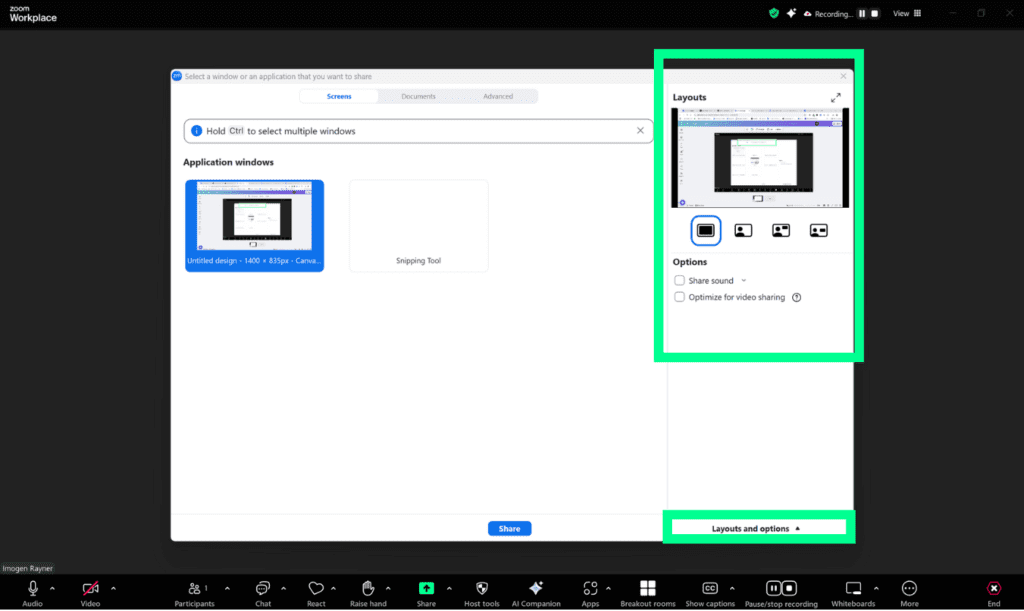
With these options, you can adjust how your video and shared content will appear together. For example, you can feature yourself in a small window in the top corner, or alongside your presentation. This flexibility provides an excellent experience for your audience.
Configuring your Screen Sharing Settings
Prior to your online event, meeting or webinar, you can configure screen sharing settings in Zoom’s Account Settings via your browser. Here, you can control who has screen-sharing privileges during meetings, such as the host or all participants.
How to Screen Share a PowerPoint Presentation
Sharing a PowerPoint is one of the most popular uses of Zoom’s screen sharing abilities. There are three ways you can do this:
1. Screensharing a PowerPoint with Two Monitors
A second monitor is ideal, especially if you want to use Presenter View in PowerPoint.
- Open your PowerPoint presentation.
- In PowerPoint, click Slideshow to start your presentation – either from current slide, or from the beginning.
- Join your Zoom meeting and click Share Screen.
- Select the screen where PowerPoint is open.
- Use your keyboard or mouse to navigate slides.
- The green border on your screen shows which monitor is being shared.
2. Screen sharing a PowerPoint from a Single Monitor
- Open your PowerPoint.
- In PowerPoint, click Slideshow to start your presentation – either from current slide, or from the beginning.
- Join your Zoom meeting and click Share Screen.
- Select the PowerPoint window instead of your entire screen.
3. Screen share your PowerPoint as a Virtual Background
Instead of showing your slides full-screen, this feature embeds you in front of them.
- Open your PowerPoint.
- Click Share Screen, then go to Advanced.
- Select PowerPoint as a Virtual Background.
- Choose your PowerPoint presentation.
- Your video will appear in front of the slides.
- Use your keyboard or mouse to navigate slides.
Troubleshooting
‘What happens if I can’t share my screen?’
If you join a meeting and can’t screen share, the host likely hasn’t enabled participant screen sharing. Don’t panic – this is an easy fix! The host can:
- Enable screen sharing during the meeting by clicking the up arrow next to the green ‘Share’ button on their toolbar.
- They can then enable ‘All Participants’ to share.
Remember, if you’re in a Zoom webinar, only hosts, co-hosts, and panellists can screen share. If you have joined the webinar and only have attendee privileges and need to share your screen, ask the host to promote you to a panellist.
To give yourself and your audience the best experience, it’s beneficial to have more than one monitor. This allows you to keep in control with Zoom, use the functionalities, engage, chat, and see participant videos on one screen while sharing content on the other, giving you a complete overview.
Practice makes perfect.
Screen sharing on Zoom is easy once you get the hang of it. If you’re unfamiliar with it, it can feel complicated and overwhelming at first, but the key is practice, practice, practice!
Before a live session, set up a test meeting. Consider inviting a friend or including a secondary device if you have one. Practice screen sharing different content types and test transitions between different screens and documents.
Top Tips for Screen Sharing on Zoom
- Prepare your setup.
Ensure everything is ready before your meeting. - Close unnecessary apps.
Prevent distractions and enhance your performance. - Tidy your desktop.
Keep it professional and clutter-free. People have beady eyes – you’ll be surprised what they notice! - Turn off notifications.
Avoid pop-ups during screen sharing so you can stay focused. - Use two screens if possible.
This certainly makes presenting and talking far easier. - Test, test, test and test again.
Avoid last-minute issues by testing everything before you present. - Engage with your audience.
Regularly pause your presentation and focus on face-to-face interaction, especially to relay important points or to answer questions. I highly recommend having a co-host assist with this so you can stay focused on your audience and not on the tech. - Click ‘stop share’ at the end of your presentation. Stop sharing your screen at the end so your audience can see you and not an empty PowerPoint presentation or document.
Finally
Mastering screen sharing on Zoom can improve your online presentations, meetings, and training sessions. By preparing in advance, making use of the right features, and, my favourite – practicing regularly, you will be able to deliver seamless and engaging content with confidence. Whether you’re hosting a webinar, running a training session, or presenting to clients, these screen-sharing tips will help you make the most of Zoom’s fantastic features.